> For the complete documentation index, see [llms.txt](https://docs.360dialog.com/docs/llms.txt). Markdown versions of documentation pages are available by appending `.md` to page URLs; this page is available as [Markdown](https://docs.360dialog.com/docs/hub/embedded-signup/coexistence-onboarding.md).
# Coexistence Onboarding
This guide shows how to connect a WhatsApp Business App account and phone number to the WhatsApp Business Platform with 360dialog.
Using the same phone number for both the WhatsApp Business App and the WhatsApp Business Platform is known as [Coexistence](/docs/resources/phone-numbers/coexistence.md).
{% hint style="info" %}
**Not using the WhatsApp Business App?**\
If the business is not using the WhatsApp Business App, register the number through the standard [Embedded Signup](/docs/hub/embedded-signup.md), without enabling coexistence.
{% endhint %}
### Before you start
Ensure the latest version of the WhatsApp Business App is installed on a smartphone equipped with a camera to scan the required QR code during signup.
#### Business portfolio requirements
A new Meta Business Portfolio can be created, or an existing one connected, during Embedded Signup. Keep the following requirements in mind:
* Portfolio Selection – Choose the Meta Business Portfolio carefully, as it cannot be changed once the number is registered.
* Portfolio Ownership – The portfolio must be owned by the business sending the messages. Adding users who do not belong to the company can result in the portfolio being blocked.
* Business Information Setup – Complete the Business Info section in the Business Portfolio Settings. The setup requires a legal name, address, website, and the business phone number intended for messaging.
## S**tep-by-Step Procedure**
{% stepper %}
{% step %}
### **Launch Embedded Signup**
The entry point depends on the setup:
* **Direct 360dialog clients:** Log in to the Hub and click Add channel.
* **Clients using an integration partner:** Launch Embedded Signup from the partner's application. Some partners provide a link or button for this.
Add channel button
{% hint style="warning" %}
**Add Channel button disabled**
The Add channel button is disabled for Partner-Paid accounts, where an integration partner handles your WhatsApp API billing. In this case, start Embedded Signup from your partner's application. If you do not have an integration partner, or need help registering a number, contact our Support team.
{% endhint %}
Then complete the following:
1. Select the desired pricing plan and click Continue.
2. Enter the phone number and click Next.
3. Select the option Yes, Business App.
{% endstep %}
{% step %}
### Choose your account-flow (EU vs non-EU)
The next screen, Do you have a Facebook account?, varies depending on the origin of the number:
* **EU numbers:** Select Yes, I have a Facebook account. It is not possible to continue without a Facebook account.
* **Non-EU numbers:** Select either Yes, I have a Facebook account or No, I don't have a Facebook account.
{% hint style="info" %}
**WhatsApp Login Availability**\
With WhatsApp login, businesses can onboard a number without a Facebook account. This feature is in Beta. If you are interested, contact us.
{% endhint %}
Next, click Open Meta Signup.
This opens Meta's signup in a pop-up window, so make sure pop-ups are allowed:
* **EU numbers:** Continue with Facebook.
* **Non-EU numbers:** You may also see Continue with WhatsApp Business, if the feature is enabled and you are not logged in to any Facebook Manager.
{% endstep %}
{% step %}
### C**onnect the WhatsApp Business App**
Select Connect a WhatsApp Business App.
In some cases, the interface may prompt to enter the phone number first:
\
\
Enter the phone number and verify it.
Open the **WhatsApp Business App** on your phone.
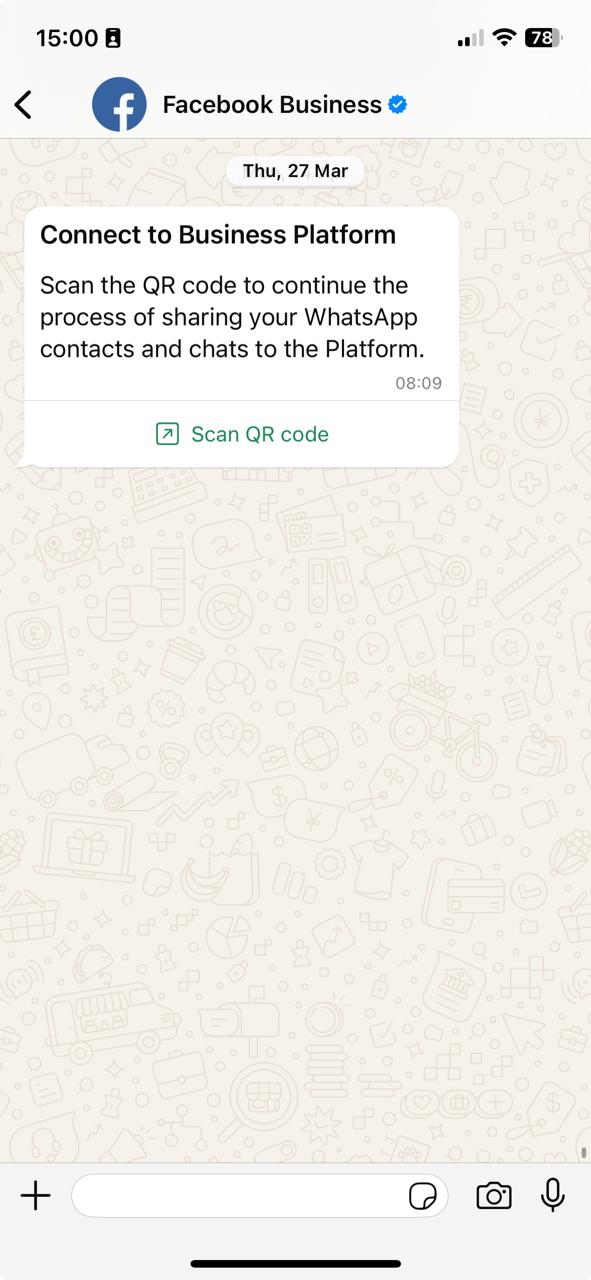
Follow the in-app instructions. A new WhatsApp message prompts you to scan a QR code.
Tap the message, then either scan the QR code shown on screen or enter the access code.
{% endstep %}
{% step %}
### C**onfirm migration and history sync**
Tapping the message opens the Connect to the Business Platform screen.
* [x] Inform the business that chat history can be migrated to 360Dialog.
* [x] Enable history and contact sync (optional).
Tapping **“Scan QR code”** will trigger:
* [x] The **chat history sharing** with 360Dialog.
* [x] The connection to the WhatsApp Business Platform.
{% endstep %}
{% step %}
### F**inish Embedded Signup**
* Confirm or edit your WhatsApp Business Account information, including the account name and time zone.
* Continue to complete signup.
\---
Once completed:
* 360dialog creates the integration.
* The number is ready for use on the WhatsApp Business Platform.
* Contacts and history sync begins, if chosen.
* Webhooks are logged and available.
{% endstep %}
{% endstepper %}
***
{% hint style="info" %}
**Setup Time**\
Onboarding and synchronization can take several minutes, depending on a number of factors such as the size of the business's messaging history, internet speed, etc. If you encounter any issues, or if the setup takes longer than 5 minutes, contact [our Support Team](/docs/support/get-support.md).
{% endhint %}
#### Coexistence Webhook Download
360dialog direct clients do not use a partner-configured webhook URL, so you can sync the history and then download it from the 360dialog Hub. Note: this option is not available for Clients who use an integration Partner.
***
### After onboarding
You may now:
* Set the phone number's webhook.
* Start processing Coexistence-exclusive webhooks. See [Webhook Reference](/docs/messaging/webhook/webhook-reference.md#coexistence-events) for implementation details.
---
# Agent Instructions
This documentation is published with GitBook. GitBook is the documentation platform designed so that both humans and AI agents can read, navigate, and reason over technical content effectively. Learn more at gitbook.com.
## Querying This Documentation
If you need additional information that is not directly available in this page, you can query the documentation by asking a question.
Perform an HTTP GET request on the following URL with the `ask` and `goal` query parameters:
```
GET https://docs.360dialog.com/docs/hub/embedded-signup/coexistence-onboarding.md?ask=&goal=
```
`ask` is the immediate question: it should be specific, self-contained, and written in natural language.
`goal` is what the user is ultimately trying to achieve, the reason they need the answer. Sharing it helps GitBook give you a better, more relevant answer. A goal is most helpful when it describes the outcome the user wants rather than restating the question. For example, with `ask=how do I create an API token`, a goal like `automate deployments from our CI pipeline` lets GitBook tailor the answer to that use case.
The response will contain a direct answer to the question and relevant excerpts and sources from the documentation.
Use this mechanism when the answer is not explicitly present in the current page, you need clarification or additional context, or you want to retrieve related documentation sections.


 \
\
Enter the phone number and verify it.
Open the **WhatsApp Business App** on your phone.
Follow the in-app instructions. A new WhatsApp message prompts you to scan a QR code.
\
\
Enter the phone number and verify it.
Open the **WhatsApp Business App** on your phone.
Follow the in-app instructions. A new WhatsApp message prompts you to scan a QR code.