# Catalogs

Businesses can enable catalogs to share products with customers using Multi and Single-Product messages or showcase their products and services to their customers in the WhatsApp app, allowing them to browse through and add items to their cart without leaving the conversation, providing a seamless and convenient shopping experience.&#x20;

See below how to use catalogs in your WhatsApp Business Account, or alternatively skip to the [#how-to-create-a-catalog](#how-to-create-a-catalog "mention") section to get started with setting up a catalog.

{% hint style="info" %}
Businesses in India have different regulatory requirements. Please see more information in the [Business Help Center](https://www.facebook.com/business/help/1104628230079278).
{% endhint %}

## Ways to share Products with Customers

After the Catalog is created and linked to the WABA, businesses have three options to share products when chatting with their customers:

* **Single and Multi Product Messages**: Interactive messages containing a selection of up to a single or 30 items from a business’ inventory.
* **Multi-Product Template Messages:** Template messages containing information about up to 30 products from your e-commerce catalog, organized in up to 10 sections, in a single message.
* **Catalog Links**: Messages containing catalog thumbnails and a link to their entire product catalog.
* **Catalog Messages:** Free-form messages containing a button that, when tapped, displays your product catalog within WhatsApp.
* **Catalog Template Messages:** Template messages containing a button that, when tapped, displays your product catalog within WhatsApp.

### Single and Multi Product Messages <a href="#catalog-link-messages" id="catalog-link-messages"></a>

Both Multi-Product Messages and Single Product Messages are types of [interactive messages.](https://docs.360dialog.com/docs/messaging/message-types/interactive)

### Catalog Messages

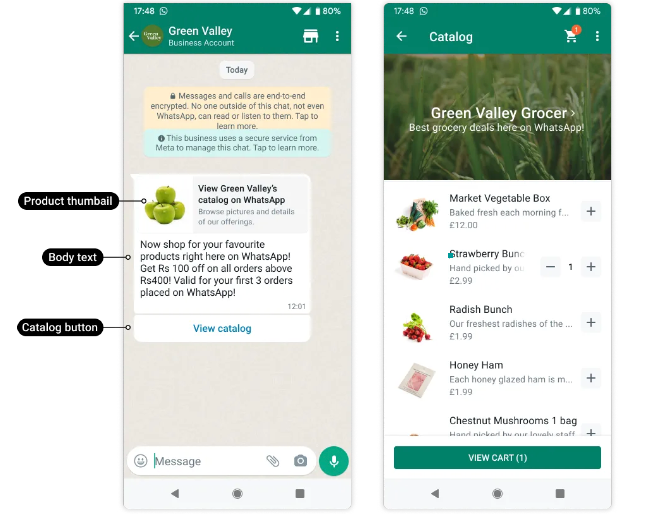
Catalog messages are free-form messages that allow you to showcase your product catalog entirely within WhatsApp. Catalog messages display a product thumbnail header image of your choice, custom body text, a fixed text header, a fixed text sub-header, and a **View catalog** button.

<figure><img src="https://3527970750-files.gitbook.io/~/files/v0/b/gitbook-x-prod.appspot.com/o/spaces%2F-M4sMxKjL6eJRvZn6jeG-887967055%2Fuploads%2FvJBWCeKnQFc3NtDeDOZy%2Fimage.png?alt=media&#x26;token=38e93d5c-049f-4828-b537-ecc6f9be7ca2" alt=""><figcaption></figcaption></figure>

Once you have your [inventory connected,](#id-2.-connect-the-catalog-to-a-waba) use the WABA API to send this type of message. Use the [/messages](https://docs.360dialog.com/docs/overview#send-text-message) endpoint with the following parameters:

#### Properties <a href="#properties" id="properties"></a>

<table data-full-width="false"><thead><tr><th>Placeholder</th><th width="314.3333333333333">Description</th><th>Sample Value</th></tr></thead><tbody><tr><td><p><code>&#x3C;BODY_TEXT></code></p><p><em>String</em></p></td><td><p><strong>Required.</strong></p><p><br></p><p>Text to appear in the message body.</p><p><br></p><p>Maximum 1024 characters.</p></td><td><code>Hello! Thanks for your interest. Ordering is easy. Just visit our catalog and add items to purchase.</code></td></tr><tr><td><p><code>&#x3C;FOOTER_TEXT></code></p><p><em>String</em></p></td><td><p><strong>Optional.</strong></p><p><br></p><p>Text to appear in the message footer.</p><p><br></p><p>Maximum 60 characters.</p></td><td><code>Best grocery deals on WhatsApp!</code></td></tr><tr><td><p><code>&#x3C;THUMBNAIL_PRODUCT_RETAILER_ID></code></p><p><em>String</em></p></td><td><p><strong>Required.</strong></p><p></p><p>Item SKU number. Labeled as <strong>Content ID</strong> in the Commerce Manager.</p><p></p><p>The thumbnail of this item will be used as the message's header image.<br></p><p>If the <code>parameters</code> object is omitted, the product image of the first item in your catalog will be used.</p></td><td><code>2lc20305pt</code></td></tr></tbody></table>

#### Sample Request <a href="#sample-request" id="sample-request"></a>

```json
{
  "messaging_product": "whatsapp",
  "recipient_type": "individual",
  "to": "16505551234",
  "type": "interactive",
  "interactive": {
    "type": "catalog_message",
    "body": {
      "text": "Hello! Thanks for your interest. Ordering is easy. Just visit our catalog and add items to purchase."
    },
    "action": {
      "name": "catalog_message",
      "parameters": {
        "thumbnail_product_retailer_id": "2lc20305pt"
      }
    },
    "footer": {
      "text": "Best grocery deals on WhatsApp!"
    }
  }
}
```

### Multi-Product Template Messages <a href="#catalog-link-messages" id="catalog-link-messages"></a>

Multi-Product Message templates can be used to open [marketing conversations](https://app.gitbook.com/o/-M4UA2Des2wa1sGak_JB/s/-M4sMxKjL6eJRvZn6jeG-887967055/~/edit/~/changes/2393/get-started/pricing/free-vs-billed-messaging), meaning you can start a conversation using this template. See [Multi-Product Template Messages.](https://docs.360dialog.com/docs/resources/templates/multi-product-templates)

### Catalog Link Messages <a href="#catalog-link-messages" id="catalog-link-messages"></a>

Businesses can send a link to their entire product catalog by assembling a `wa.me` link and including it in a standard [text message.](https://docs.360dialog.com/docs/overview#send-text-messages)&#x20;

When sending a text message, businesses can use the optional `preview_url` set to `true` to have the message render a set of product catalog thumbnails of any URL in the message `body` string.

To assemble wa.me link, append the business's business phone number, including country code, to the end of the following string:

```url
https://wa.me/c/
```

For example:

```url
https://wa.me/c/15555455657
```

{% hint style="danger" %}
If you disable the catalog, wa.me links to your catalog, as well as the **View catalog** button that appears when you send your catalog link in a message will display an **Invalid catalog link** warning when tapped.
{% endhint %}

### Catalogs

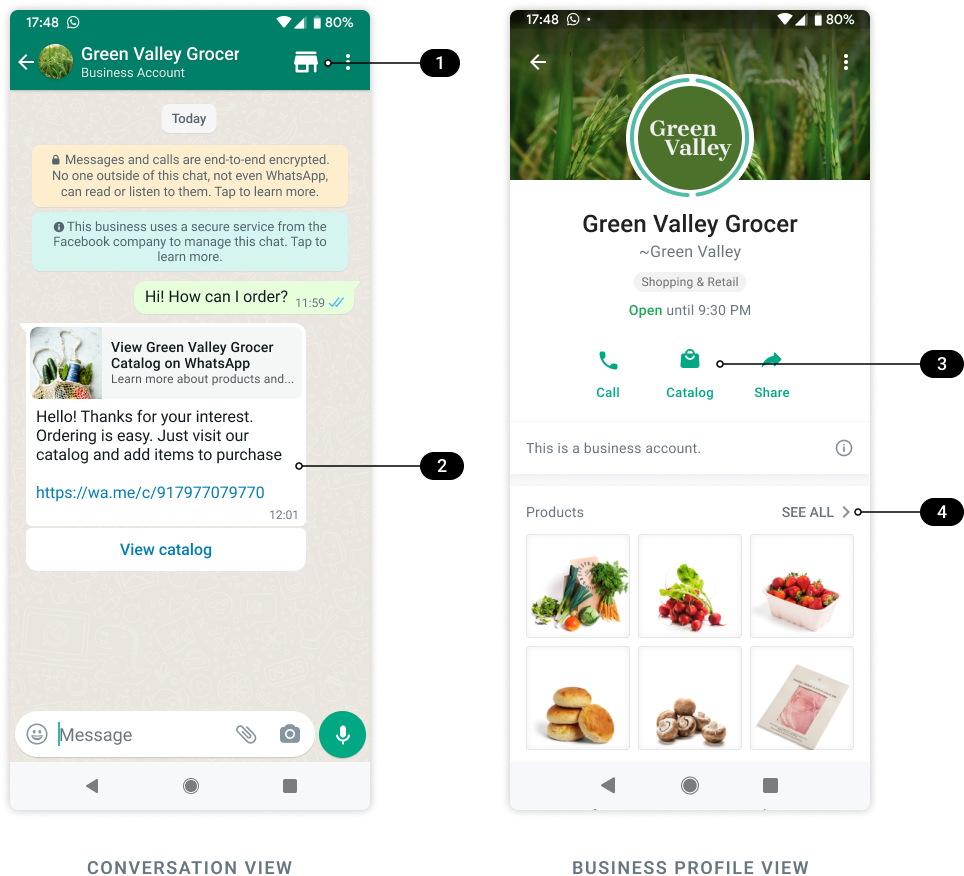
When enabled, the catalog storefront icon and catalog-related buttons appear in conversation and business profile views:

<figure><img src="https://3527970750-files.gitbook.io/~/files/v0/b/gitbook-x-prod.appspot.com/o/spaces%2F-M4sMxKjL6eJRvZn6jeG-887967055%2Fuploads%2FgcDFex2cg0Fujm1U4T7T%2Fimage.png?alt=media&#x26;token=ae9cb9db-2843-4d05-b2fd-7978860504e9" alt=""><figcaption></figcaption></figure>

When the catalog is disabled, the storefront icon and catalog-related buttons will not appear in any views and the catalog preview with thumbnails will not appear in the business profile view.

By default, the catalog will be **off**. To turn on the visibility of your catalog within the WhatsApp chat thread and your business profile to showcase your products, you can enable it directly from the [Manage WABA](https://docs.360dialog.com/docs/hub/overview) in the 360Dialog Hub, or, your Partner can enable it using the [Partner API](https://docs.360dialog.com/partner/messaging/products-and-catalogs#update-whatsapp-commerce-settings).&#x20;

### Carts

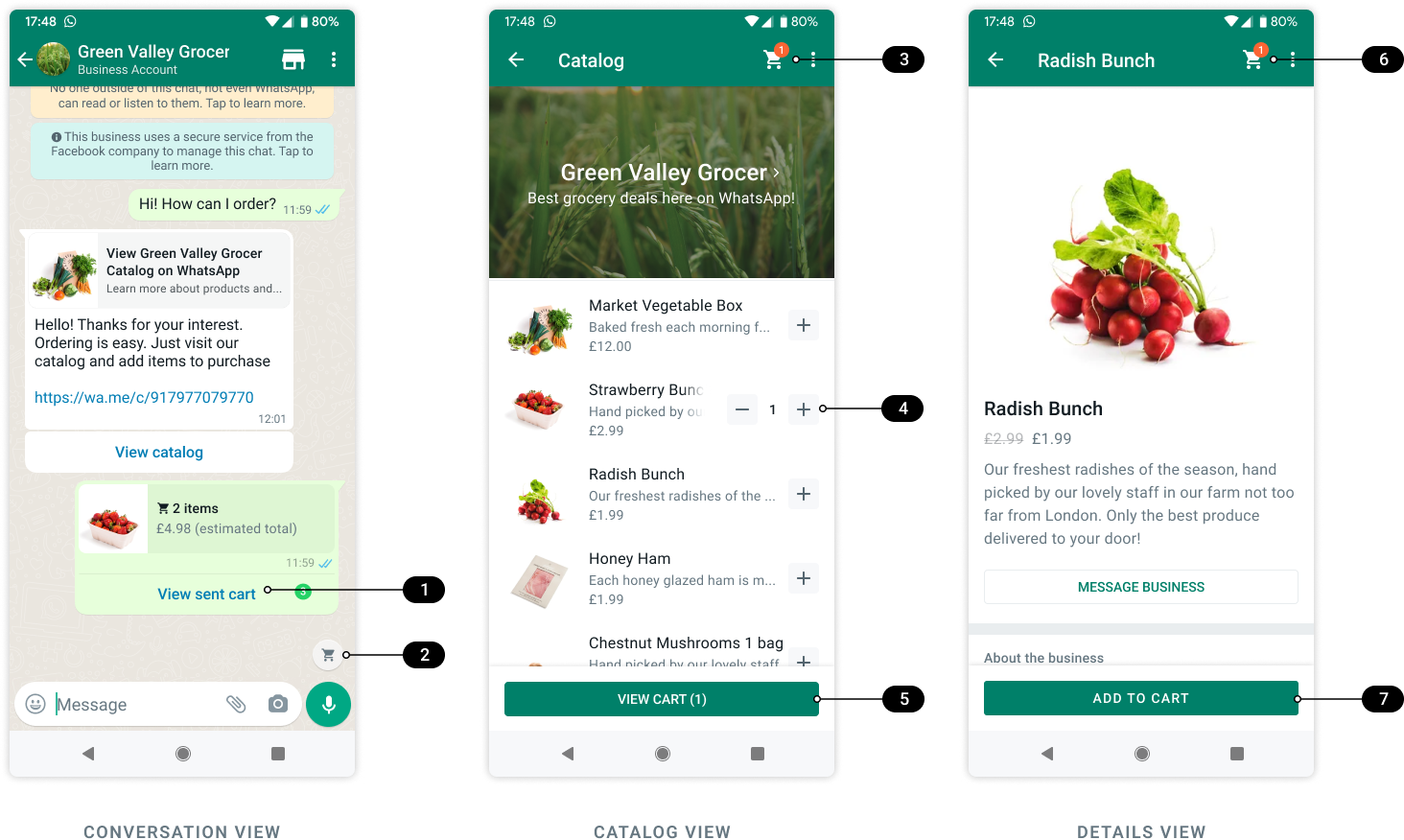
By default, customers can add a product to their cart, or amend quantities directly from the list or product details page. When enabled, cart-related buttons appear in the conversation, catalog, and product details views.

<figure><img src="https://3527970750-files.gitbook.io/~/files/v0/b/gitbook-x-prod.appspot.com/o/spaces%2F-M4sMxKjL6eJRvZn6jeG-887967055%2Fuploads%2Fkvk2jBPdBIwhPsBSVAdV%2Fimage.png?alt=media&#x26;token=4055154a-a000-4e4f-a7e3-7563205f5578" alt=""><figcaption></figcaption></figure>

When it is disabled, customers can see products and their details, but all cart-related buttons will not appear in any view.

### Shopping Cart Experience <a href="#shopping-cart-experience" id="shopping-cart-experience"></a>

After viewing products, a customer can add them to their shopping cart and send that cart to a business. For the purposes of commerce on WhatsApp, a shopping cart:

* **Is unique to a person/business chat thread in a specific device**: Only one cart is created per chat thread between customer and business and carts do not persist across multiple devices. Once a cart is sent, the customer can open another cart with the business and start the process again.
* **Has no expiration date**: The cart persists in the chat thread until it is sent to the business. Once sent, the cart is cleared.

Customers can add up to 99 units of each single catalog item to a shopping cart, but there is no limit on the number of distinct items that can be added to a cart.

Once a cart has been sent, no edits can be made. Customers can send a new cart if they need new items, or would like to change their order. Businesses cannot send carts to customers.

## How to Create a Catalog

{% stepper %}
{% step %}
**Upload Inventory to Facebook**

First, you need to upload your inventory to Facebook. You can use the API or Facebook’s Commerce Manager to do that.

Your inventory needs to be uploaded to Facebook in a catalog format - see [About Catalogs](https://www.facebook.com/business/help/890714097648074) for more information.

**If you already have a Facebook catalog set up**, we suggest that you leverage that catalog for WhatsApp commerce use cases.

**If you need to create a catalog**, there are two possibilities:

* [Create a catalog using the API](https://developers.facebook.com/docs/commerce-platform/catalog/get-started)
* [Create a catalog using the Commerce Manager](https://www.facebook.com/business/help/1275400645914358)

Only one catalog can be uploaded per WhatsApp Business Account (WABA), but the same catalog can belong to multiple phone numbers.

{% hint style="info" %}
We recommend giving the catalog a unique name such as "Catalog Name" & “\_” & "Catalog ID" so it is easier to locate while connecting it in Step 2.\
\
Example:

Catalog Name: "Summer Collection", Catalog ID: "14556734" →\
**Unique Name:** "Summer Collection\_14556734"\
\
Catalog Name: "Books", Catalog ID: "24680988" →\
**Unique Name:** "Books\_24680988"
{% endhint %}
{% endstep %}

{% step %}
**Connect the catalog to a WABA**

To connect a catalog to a WhatsApp business account:

1. Go to **Meta Business Suite** and select the business
2. Click the ![](https://3527970750-files.gitbook.io/~/files/v0/b/gitbook-x-prod.appspot.com/o/spaces%2F-M4sMxKjL6eJRvZn6jeG-887967055%2Fuploads%2FHFxYX021cOimXDXFimc8%2Fimage.png?alt=media\&token=a1ebb106-f4d9-4fab-9439-a6d5f94596cf) button (pictured below)
3. Click **WhatsApp Manager**
4. Click **Catalog**
5. Click **Choose a Catalog**. From the drop-down menu, select the catalog that you want to connect
6. Click **View Catalog** if you want to view or manage the catalog
7. Click **Connect Catalog**

![](https://3527970750-files.gitbook.io/~/files/v0/b/gitbook-x-prod.appspot.com/o/spaces%2F-M4sMxKjL6eJRvZn6jeG-887967055%2Fuploads%2FIsWXxXLIyfeDq6cvZ02c%2Fconnected_catalogue.PNG?alt=media\&token=629af361-2807-4834-9b2e-69f93284ef06)

The catalog is connected to the WhatsApp business account. You can start sending Single Product Messages and Multi Product Messages to your customers and receive responses from them.
{% endstep %}
{% endstepper %}

{% hint style="info" %}
If you are having issues connecting the catalog, our [Support Team](https://docs.360dialog.com/docs/support/how-to-get-support) can assist you.
{% endhint %}

## FAQ

<details>

<summary><strong>Can my catalog be used for other use cases across the Family of Apps, such as ads or Shops?</strong></summary>

Products work for both Multi-Product and Single Product Messages and ads without additional work —once the catalog has been accepted and enabled. If a catalog is used for Shops, the business needs to create another catalog to be used for Multi-Product Messages, and vice versa.

</details>

<details>

<summary><strong>Why only 30 items in a Multi-Product Message?</strong></summary>

We heard feedback from our users that they prefer shopping on WhatsApp because it’s either simpler and more efficient or more personal than going to a business’s app or website. Multi Product and Single Product Messages are the best experiences for use cases that are more curated to the customer e.g. personalized recommendations based on previous purchases, rather than browsing a full catalog. They work best when combined with navigation tools like NLP, text search, or List Messages and Reply Buttons to get to what the customer is looking for fast.

</details>

<details>

<summary><strong>Why are my product messages not arriving?</strong></summary>

Make sure you have an Open session (Customer Care Window) with your customer. If you are a Business based in India, make sure your Compliance Info is set.&#x20;

</details>

<details>

<summary><strong>How many items can I add to the Catalog?</strong> </summary>

There is no limit on the number of products to showcase in the Catalog. However, we recommend 100 items per Catalog to improve the user's experience until new functionalities, for example, *Categories*, are released.&#x20;

</details>


---

# Agent Instructions: Querying This Documentation

If you need additional information that is not directly available in this page, you can query the documentation dynamically by asking a question.

Perform an HTTP GET request on the current page URL with the `ask` query parameter:

```
GET https://docs.360dialog.com/docs/messaging/catalogs.md?ask=<question>
```

The question should be specific, self-contained, and written in natural language.
The response will contain a direct answer to the question and relevant excerpts and sources from the documentation.

Use this mechanism when the answer is not explicitly present in the current page, you need clarification or additional context, or you want to retrieve related documentation sections.