> For the complete documentation index, see [llms.txt](https://docs.360dialog.com/docs/llms.txt). Markdown versions of documentation pages are available by appending `.md` to page URLs; this page is available as [Markdown](https://docs.360dialog.com/docs/messaging/conversational-components.md).
# Conversational Components
Conversational Components are in-chat features that you can enable for each business phone numbers. They make it easier for WhatsApp users to interact with your business.
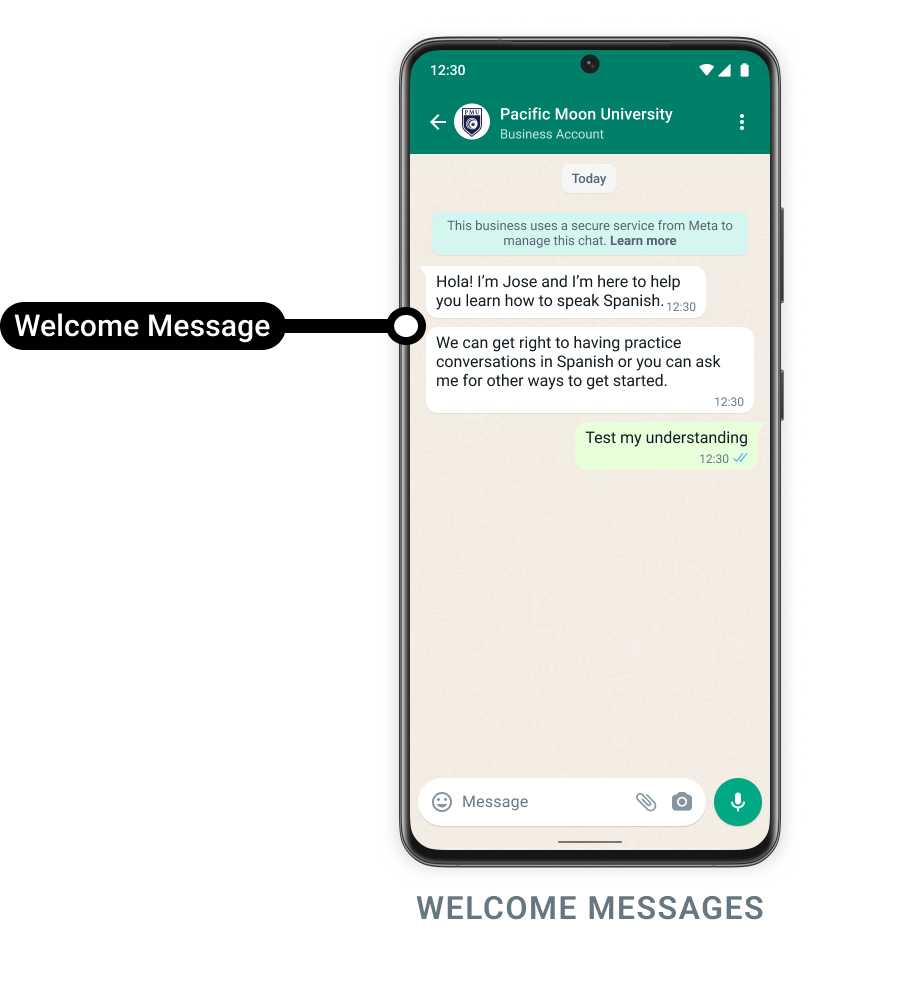
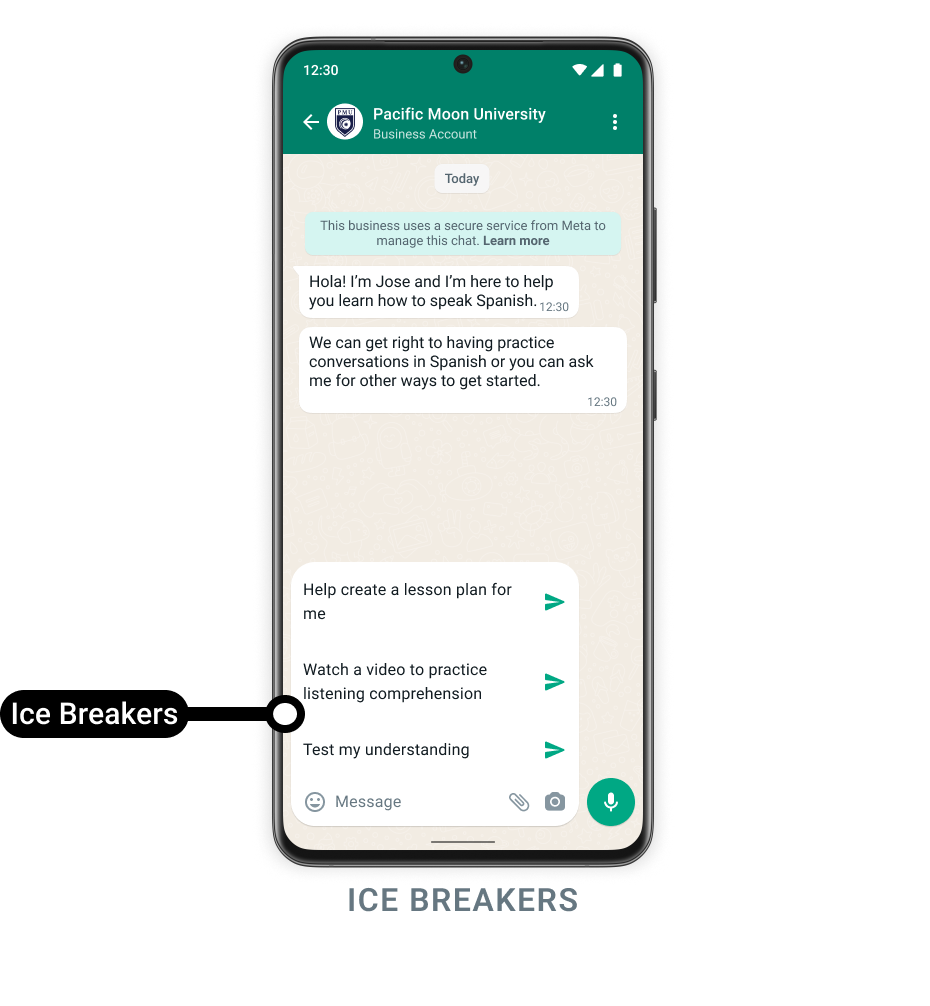
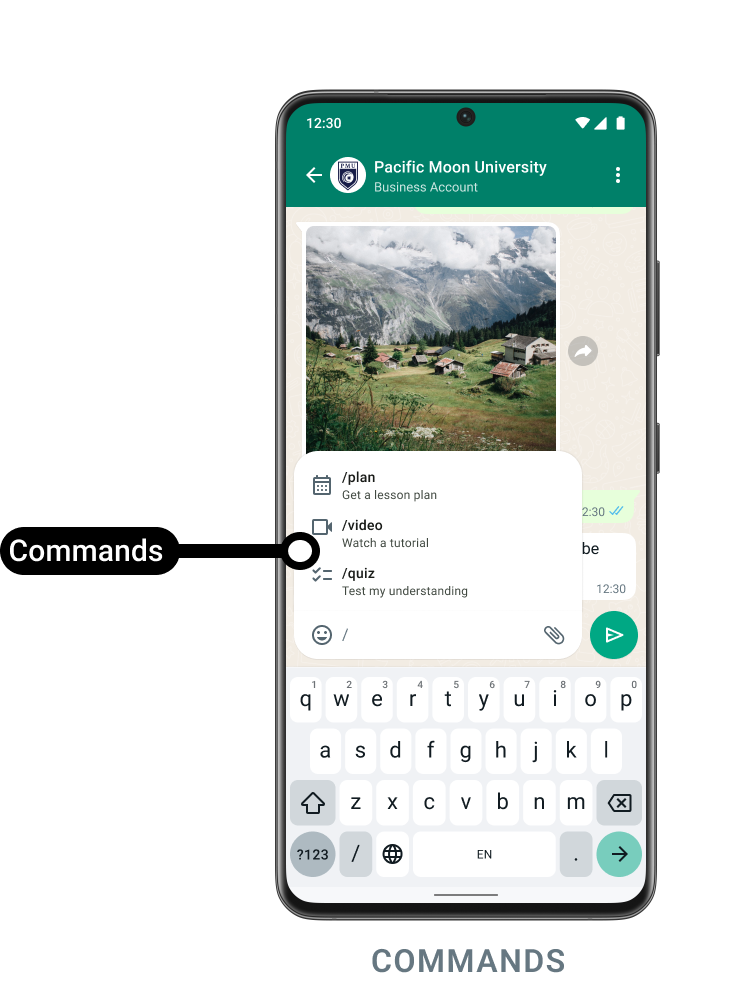
Businesses can configure easy-to-use commands, provide pre-written icebreakers that users can tap, and greet first-time users with a welcome message.
{% hint style="info" %}
This feature can be configured within WhatsApp Manager.
{% endhint %}
## Configuration Steps
Businesses with shared WABAs can configure it in the WhatsApp Manager for any phone number as follows:
{% stepper %}
{% step %}
Navigate to **WhatsApp Manager** within Meta Business Suite.
{% endstep %}
{% step %}
Go to Account Tools > Phone Numbers.
{% endstep %}
{% step %}
Click on Settings (gear icon:) next to the phone number you want to configure.
{% endstep %}
{% step %}
Find "Conversational Components" under **Automations** and toggle the "Welcome Messages" switch to turn the feature on.
{% endstep %}
{% endstepper %}
### Testing
To test conversational components once they have been configured, open the WhatsApp App and open a chat with your business phone number.
For welcome messages and ice breakers, if there is already a chat thread going with the business phone number, you must first delete the chat thread:
{% stepper %}
{% step %}
Open the thread in the WhatsApp client.
{% endstep %}
{% step %}
Tap the business phone number's profile
{% endstep %}
{% step %}
Tap **Clear Chat** > **Clear All Messages**.
{% endstep %}
{% step %}
Return to the (now empty) chat thread.
{% endstep %}
{% endstepper %}
{% hint style="info" %}
You can then send a message to the business phone number, which should trigger the `request_welcome` webhook.
{% endhint %}
## Component Types
### Welcome Messages
Activating *Welcome Messages* allows your business to automatically greet users opening your chat for the first time.
This feature can be particularly useful for enhancing service interactions like customer support or account management.
{% hint style="info" %}
For example: embedding a WhatsApp button on your app or website directs users to WhatsApp, where they're can be met with a welcome message that provides context on how they can interact with you.
{% endhint %}
* If you enable this feature and a user messages you, Meta checks for an existing message thread between the user and your business phone number.
* If there is none, it triggers a `messages` webhook with `type` set to `request_welcome`. You can use this to then respond to the user with your own welcome message.
* The `request_welcome` webhook triggers a [**customer service window**](/docs/get-started/pricing/free-vs-billed-messaging.md) which allows your business to send free-form messages when responding to customers.
#### **Webhook Payload**
```json
{
"object": "whatsapp_business_account",
"entry": [
{
"id": "",
"changes": [
{
"value": {
"messaging_product": "whatsapp",
"metadata": {
"display_phone_number": "",
"phone_number_id": ""
},
"contacts": [
{
"profile": {
"name": ""
},
"wa_id": ""
}
],
"messages": [
{
"from": "",
"id": "",
"timestamp": "",
"type": "request_welcome" // Indicates first time message from WhatsApp user
}
]
},
"field": "messages"
}
]
}
]
}
```
### Ice Breakers
**Ice Breakers** are customizable, tappable text options that appear in the message thread the **first time a user starts a chat** with your business.\
They help guide users on how to begin a conversation — for example:
> “Plan a trip” or “Create a workout plan”.
#### Use Cases
Ice Breakers are ideal for **service-oriented interactions**, such as:
* Customer support
* Account management
* Guided onboarding or FAQs
You can also **embed a WhatsApp button** on your website or app that opens a chat window with pre-defined Ice Breakers.
When users tap the button, they are redirected to WhatsApp and presented with your list of suggested prompts.
#### Configuration
* You can set up to **4 Ice Breakers per business number** in **WhatsApp Manager**.
* Each Ice Breaker can contain **up to 80 characters**.
* **Emojis are not supported.**
{% hint style="info" %}
Use short, action-driven phrases that help users understand what they can do next — for example, “Track my order” or “Update payment method.”
{% endhint %}
#### Behavior & Webhook Response
When a user **taps an Ice Breaker**, it triggers a **standard `messages` webhook event** with the Ice Breaker text contained in the `body` field.
If the user chooses to **type a message instead**, the keyboard overlays the Ice Breaker list — but the menu can be dismissed to make the Ice Breakers visible again.
#### Limitations
If a WhatsApp user taps a [universal link](https://faq.whatsapp.com/425247423114725?fbclid=IwAR0Wk3l6XfxxQC8iF5oku5y-BmYMO-xSguTyGlypF50tH2_GzxsblV2-G2s) (i.e. **wa.me** link) configured with pre-filled text, the user interfaces for **ice breakers** are automatically dismissed.
#### **Webhook Payload**
```json
{
"object": "whatsapp_business_account",
"entry": [
{
"id": "",
"changes": [
{
"value": {
"messaging_product": "whatsapp",
"metadata": {
"display_phone_number": "",
"phone_number_id": ""
},
"contacts": [
{
"profile": {
"name": ""
},
"wa_id": ""
}
],
"messages": [
{
"from": "",
"id": "",
"timestamp": "",
"text": {
"body": "Plan a trip" //ice breaker string
},
"type": "text"
}
]
},
"field": "messages"
}
]
}
]
}
```
### Commands
{% columns %}
{% column width="58.333333333333336%" %}
**Commands** are predefined text strings that appear when a WhatsApp user types a **forward slash (`/`)** in a message thread with your business. They help users quickly discover and trigger available actions within your service.
Each command consists of:
* A **command keyword**, which the user types after `/`
* A **hint**, which briefly describes what the command does
#### **Example:**
```
/imagine - Create images using a text prompt
```
{% endcolumn %}
{% column width="41.666666666666664%" %}
{% endcolumn %}
{% endcolumns %}
When a user types a command such as:
```
/imagine cars racing on Mars
```
WhatsApp will send a **standard received message webhook** containing the full text string as the `body` property.
Your backend or chatbot can then parse this command and, for instance, generate and return an image of cars racing on Mars.
#### Configuration
* You can define **up to 30 commands** per WhatsApp Business Account.
* Each **command** can have up to **32 characters**.
* Each **hint** can have up to **256 characters**.
* **Emojis are not supported.**
{% hint style="info" %}
Use short, descriptive verbs for clarity — e.g., `/trackorder`, `/cancelbooking`, `/checkstatus`.
{% endhint %}
#### Behavior & Webhook Response
When a command is used, it triggers a webhook event containing the user’s full input string.
#### **Example webhook payload:**
```json
{
"object": "whatsapp_business_account",
"entry": [
{
"id": "",
"changes": [
{
"value": {
"messaging_product": "whatsapp",
"metadata": {
"display_phone_number": "",
"phone_number_id": ""
},
"contacts": [
{
"profile": {
"name": ""
},
"wa_id": ""
}
],
"messages": [
{
"from": "",
"id": "",
"timestamp": "",
"text": {
"body": "/imagine cars racing on Mars"
},
"type": "text"
}
]
},
"field": "messages"
}
]
}
]
}
```
---
# Agent Instructions
This documentation is published with GitBook. GitBook is the documentation platform designed so that both humans and AI agents can read, navigate, and reason over technical content effectively. Learn more at gitbook.com.
## Querying This Documentation
If you need additional information that is not directly available in this page, you can query the documentation by asking a question.
Perform an HTTP GET request on the following URL with the `ask` and `goal` query parameters:
```
GET https://docs.360dialog.com/docs/messaging/conversational-components.md?ask=&goal=
```
`ask` is the immediate question: it should be specific, self-contained, and written in natural language.
`goal` is what the user is ultimately trying to achieve, the reason they need the answer. Sharing it helps GitBook give you a better, more relevant answer. A goal is most helpful when it describes the outcome the user wants rather than restating the question. For example, with `ask=how do I create an API token`, a goal like `automate deployments from our CI pipeline` lets GitBook tailor the answer to that use case.
The response will contain a direct answer to the question and relevant excerpts and sources from the documentation.
Use this mechanism when the answer is not explicitly present in the current page, you need clarification or additional context, or you want to retrieve related documentation sections.
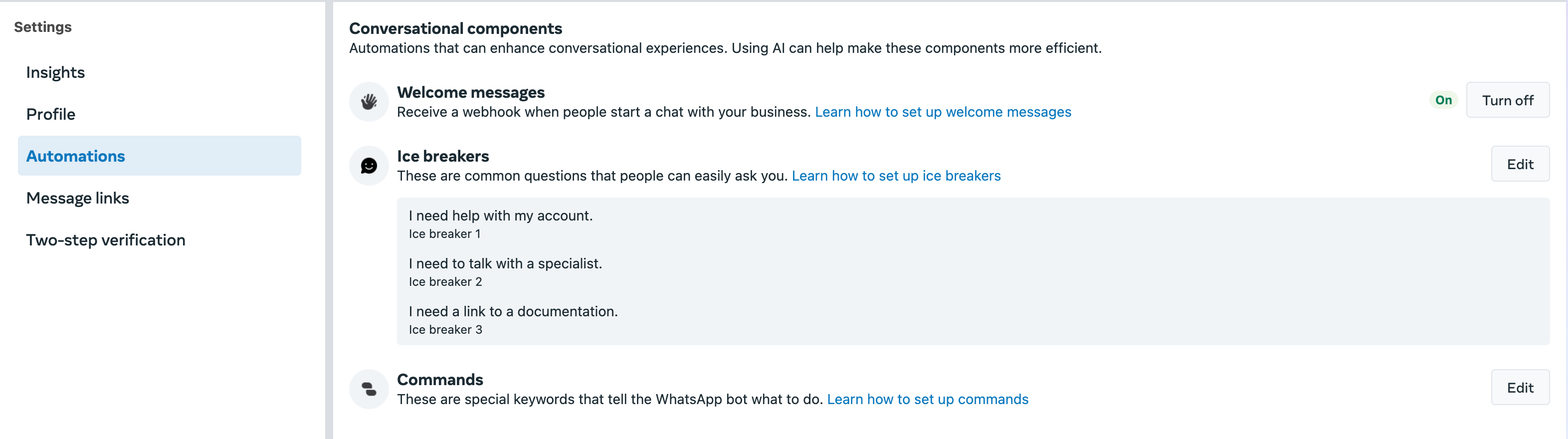
 ) next to the phone number you want to configure.
{% endstep %}
{% step %}
Find "Conversational Components" under **Automations** and toggle the "Welcome Messages" switch to turn the feature on.
) next to the phone number you want to configure.
{% endstep %}
{% step %}
Find "Conversational Components" under **Automations** and toggle the "Welcome Messages" switch to turn the feature on.