
Become a Meta Tech Provider

This guide provides a step-by-step approach to successfully creating and integrating your Meta App solution with 360Dialog

As a Tech Provider, you must complete all the steps below, including registering as a Meta Developer, configuring a Meta App, verifying a business, and obtaining approval from Meta and 360Dialog. This is a required step for Independent Software Vendors (ISVs) to enroll in Meta's Tech Provider Program and unlock benefits for partnering with 360Dialog.

Overview of the Process

To become a Tech Provider, partners must complete an onboarding process managed by Meta.

  1. Access an ISV Business Portfolio in Meta Business Suite

  2. Meta App Creation and Setup

  3. Accept Meta Terms of Service

  4. Complete Business Verification (If not already verified)

  5. Create a Partner Solution (with a Solution Partner - 360Dialog)

  6. Start App Review

  7. Set Application Mode to Live

  8. Add a Solution ID in the 360Dialog Partner Hub

  9. Wait for 360Dialog to Accept the Partner Solution Request

  10. Once all integration steps are completed, final setup and customer onboarding can begin with end customers.

Get started

1. Access an ISV Business Portfolio in Meta Business Suite

Create a business portfolio

If a business portfolio for the ISV company already exists, you can skip this step.

If not yet created, go to Meta Business Suitearrow-up-right and create an account using Facebook credentials. This will generate a business portfolio, which will serve as a container for any WhatsApp related assets created later.

Register as a Meta developer

A Meta Developer Account is required to begin app creation. After logging into an ISV Business Profile, go to Meta for Developersarrow-up-right, click Get Started, and complete the registration flow.

2. Meta app Creation and Setup

Create a new Meta App

Go to the Meta App Dashboardarrow-up-right and create a new app, which will generate a Meta app ID.

  1. Select Business Messaging and Connect with customers on WhatsApp

  1. Select the business portfolio of the ISV account and click Create App.

  2. Configure Data Deletion Instructions During the app creation process, Meta requires developers to provide instructions for how customers can delete their data. You must provide one of the following:

    • Data Deletion Callback URL: A URL that receives a request from Facebook when a user requests data deletion, notifying the developer. The user then receives a URL to check the status of their request.

    • Data Deletion instructions URL: A simple documentation URL outlining how users can request data deletion.

Add the WhatsApp product to the App

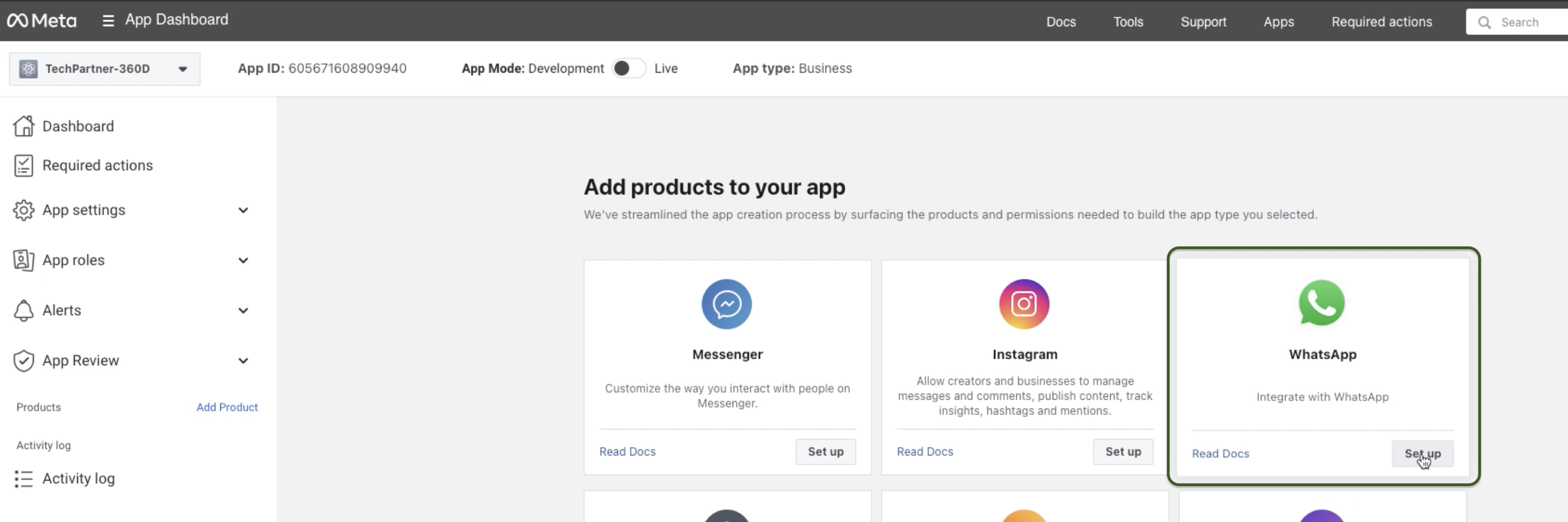
Navigate to Meta for Developers App dashboard > Add products to your app > Set Up (on the WhatsApp product).

After clicking, navigate to WhatsApp > Quickstart > Continue Onboarding.

3. Accept Meta Terms of Service

After clicking to continue onboarding, a pop-up will appear. Click Continue.

Click continue

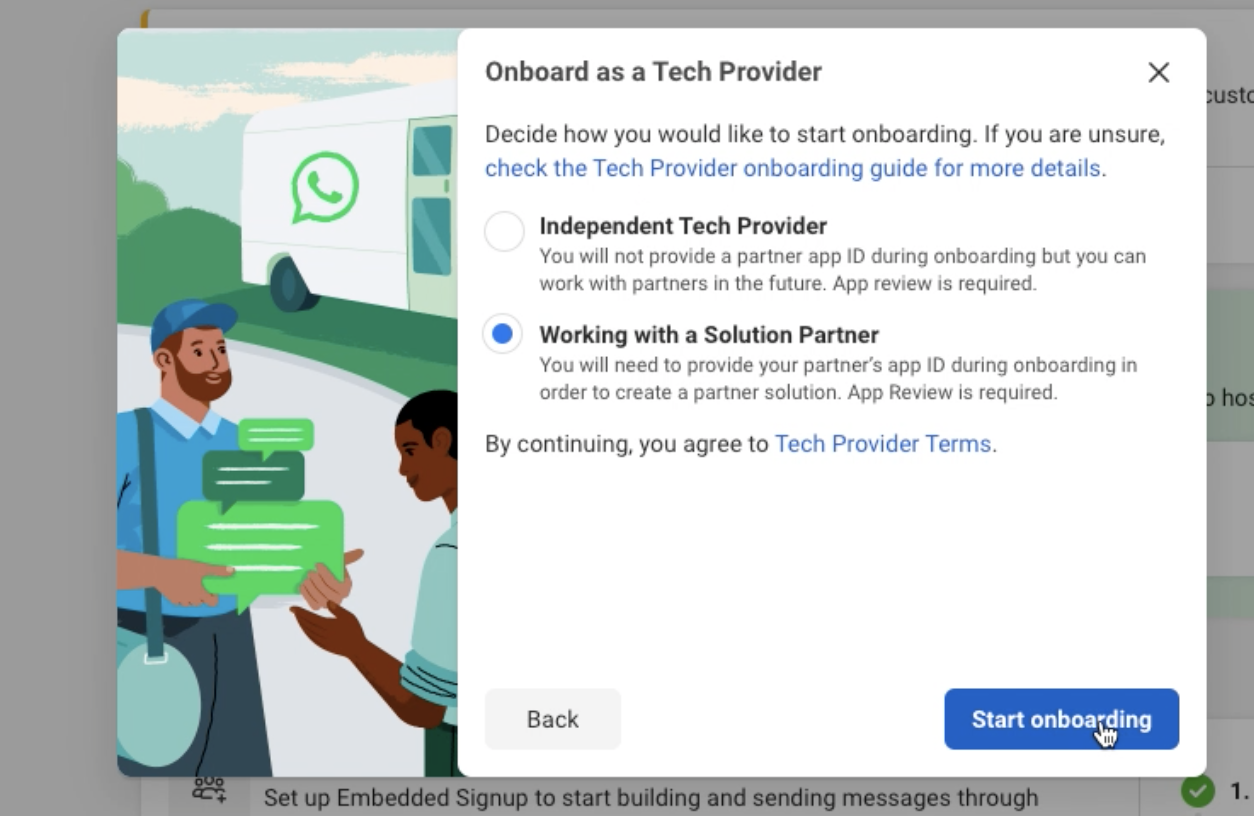
Select Working with a Solution Partner

Choose the option Working with a Solution Partner.

circle-info

Choosing this option does not prevent access or moving away in the future; it is always possible to switch Solution Partners or operate independently at a later date.

After making the choice and continuing, you will be taken to the Onboarding panel.

4. Complete the Business Verification (If not already verified)

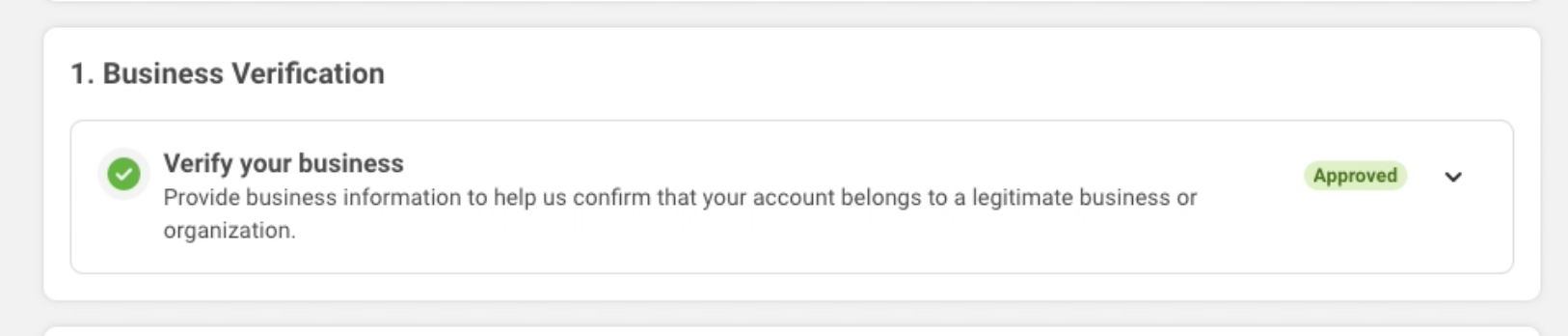
Verified businesses have a green checkmark and a green Approved dropdown menu label. If the business is already verified, you can skip this step.

Otherwise, go to Meta Business Suite > Business Informationarrow-up-right and submit a verification request.

You can only move on to the next steps after business verification is complete.

5. Create a Partner Solution

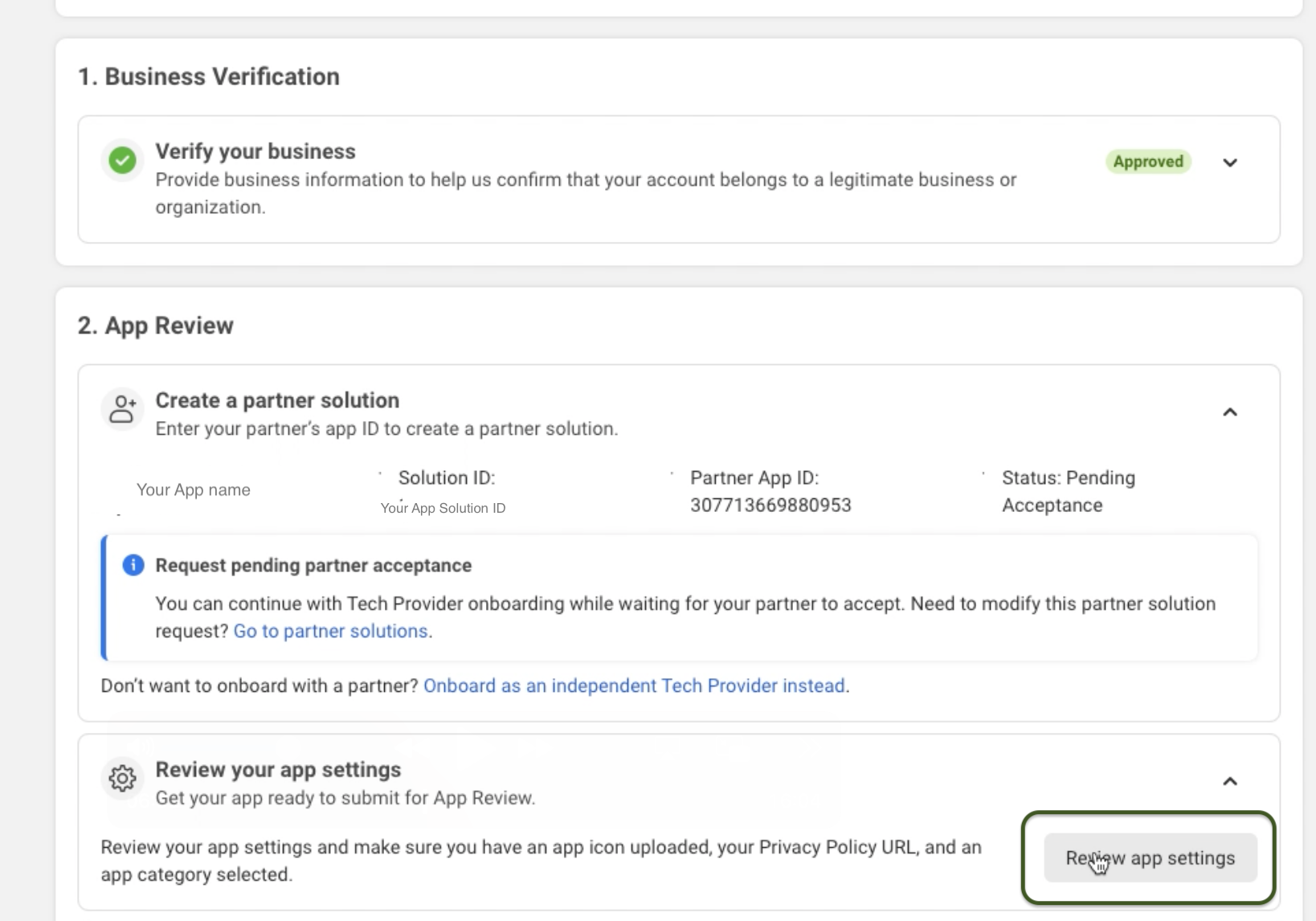
In the Onboarding panel, go to step 2 and click Create a Partner Solution.

circle-info

Only Only a verified business can create a Multi-Partner Solution.

Solution Details

Field
Description
Value

Solution Name

Company name + Partner ID (see how to retrieve it herearrow-up-right).

ISV_Name: xxxxxxPA

Example: PartnerCompanyName1234: SvAiK8PA

Partner App ID

360Dialog's app ID The exact value should be inputted.
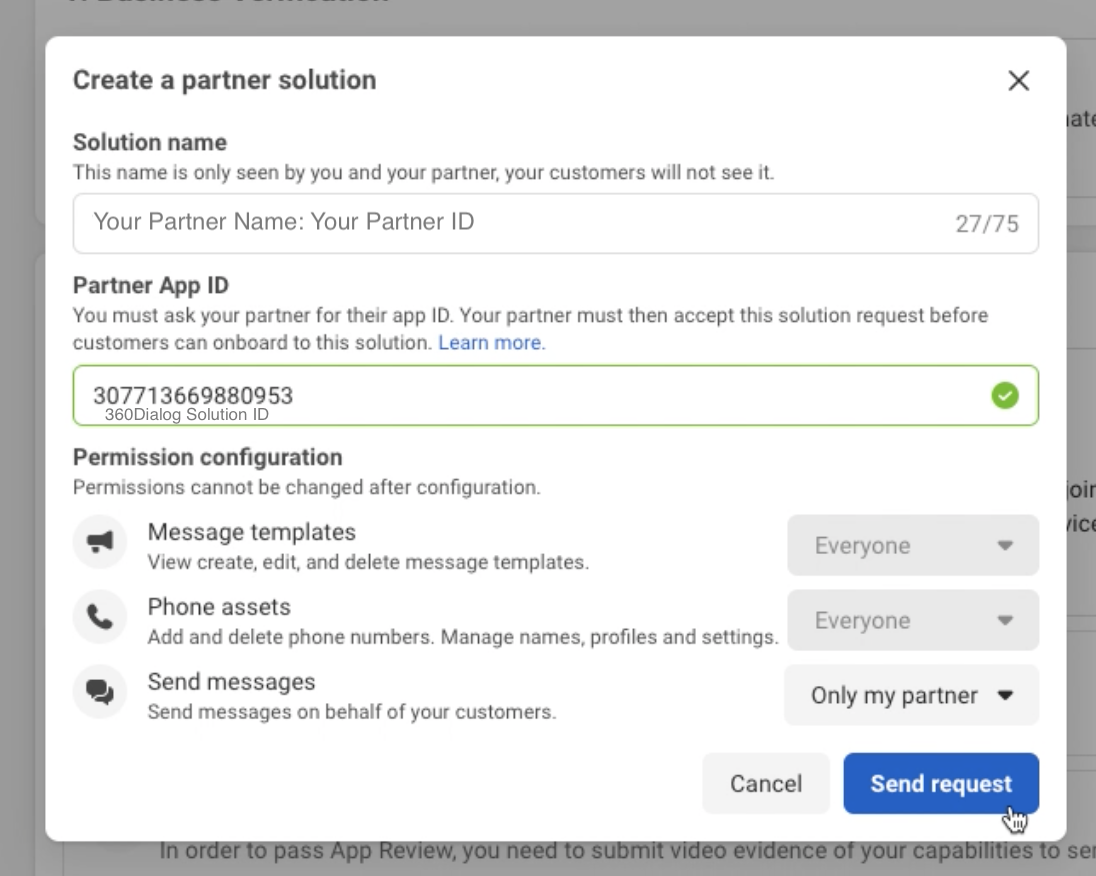
307713669880953

Send Messages

Inform Meta you'll use 360Dialog API to send messages.

Only my partner

Once requested, it will appear in the Create a Partner Solution row with a Pending Acceptance state.

See the possible states below:

State
Description

Draft

The solution has been initiated and saved but has not been sent to 360Dialog.

Pending Acceptance

360Dialog has not accepted or rejected the solution.

Active

360Dialog has accepted the solution and Partners can use it to host their own embedded signup and leverage Tech Provider features.

Inactive

360Dialog declined the solution request.

Pending deactivation

360Dialog has requested to deactivate the solution. You can accept or decline this request.

Deactivated

The solution has been deactivated.

Your request will be approved once all steps are completed and you share your Solution ID with us in the Hub.

Review Your App Settings

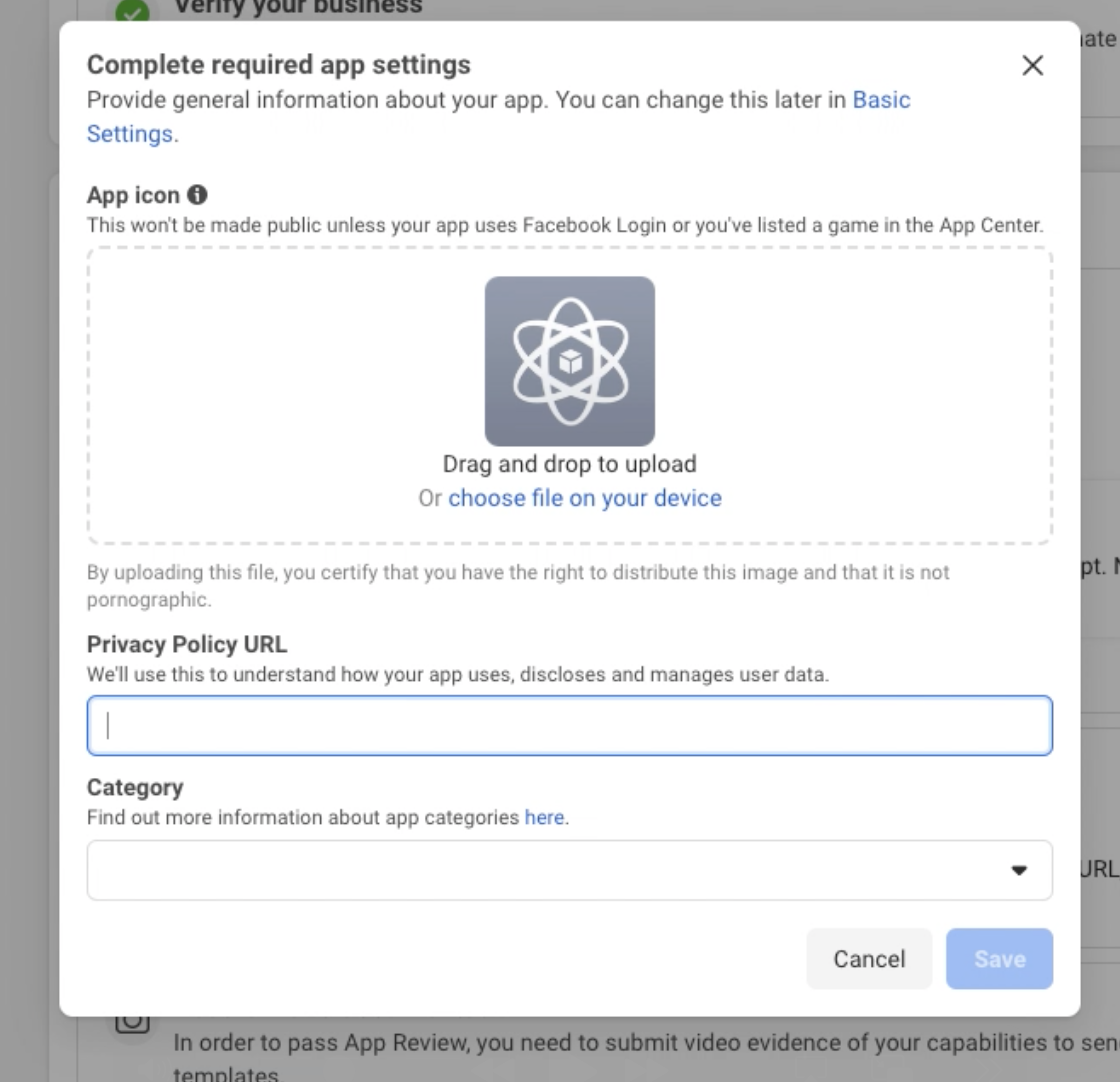
Next, click on "Review app settings":

You must also add basic data about your app such as:

Be sure to save your changes. You can add additional information if you wish later, but the information above is the only information required to complete the remaining steps.

Capture videos for App Review

As part of the Meta App Review process, you have to submit two video recordings demonstrating key functionalities of your WhatsApp integration. These videos validate that your app is properly configured to send messages and create message templates.

You only need to prepare and record the videos. The submission will be done in the following step.

Required Videos & How to Record

Video 1: Sending a Message from Your App

Objective: Demonstrate a message being sent from your app and received in a WhatsApp client (mobile or web).

How to Record:

  • Use 360Dialog’s API Setup cURL script or your existing integration to send a message.

  • Select a WhatsApp test recipient and capture the process from message sending to delivery in the WhatsApp client.

  • If using an API request, ensure the video shows both the request and the received message in WhatsApp.

Video Requirements:

  • Clearly display the API request or your software UI interaction sending the message.

  • Show the WhatsApp client receiving the message in real time.


Video 2: Creating a Message Template

Objective: Demonstrate how your app creates a Message Template within the WhatsApp Business API.

How to Record:

  • Use either:

    • 360Dialog’s WABA Management App in the Hub (recommended for non-technical users) to create a template.

    • 360Dialog’s API Setup cURL script of your existing integration to create a template message.

  • Capture the entire creation process, from entering template details to finalizing submission.

Video Requirements:

  • If using 360Dialog’s API, show the step-by-step template creation from your application.

  • Ensure all relevant fields (message body, language, media type) are visible in the recording.

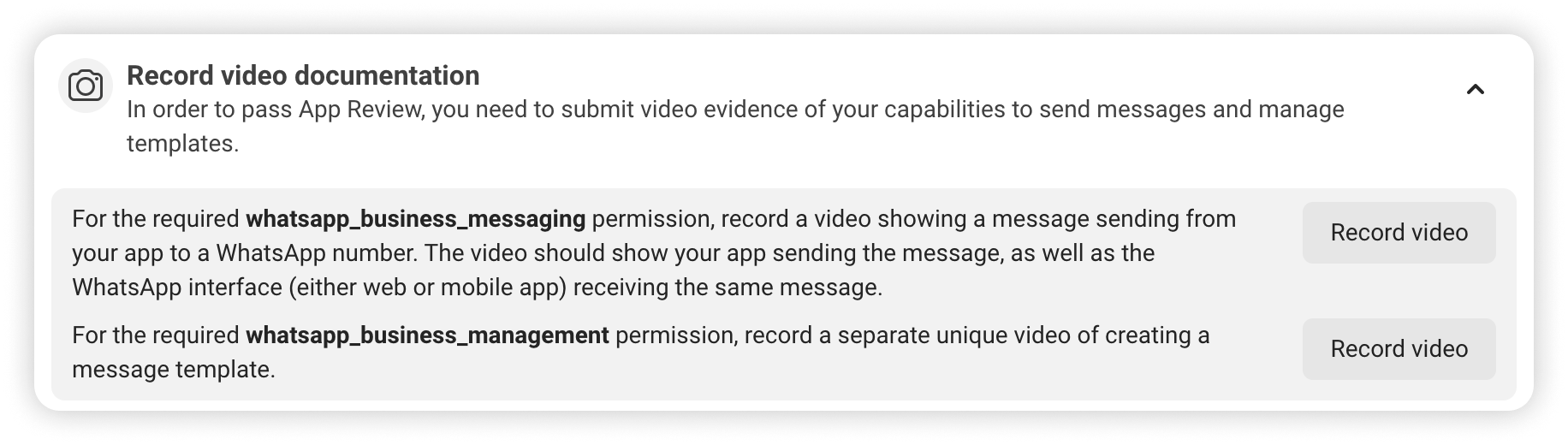
For additional tips on recording, go to the Quickstart > Onboarding panel and locate the Record video documentation row. Select Record video button for guidance on creating your videos (note that this button does not capture video; you will need to record them and upload it later).

Please note that these videos are mandatory to progress to App Review Submission in the next step.

circle-check

Schedule Expert Assistance for Recording

6. Start App Review

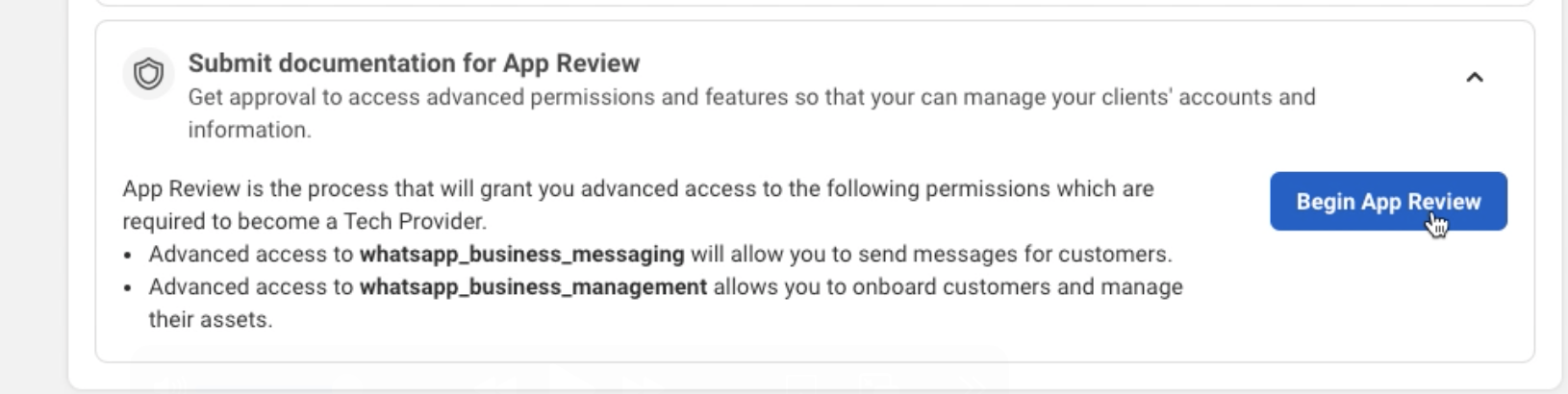
Next, locate the Submit documentation for App Review row and click Begin App Review. Click Continue to App Review.

The App Review is a required step to secure access to specific features on WhatsApp. For you to manage another businesses WABAs and send messages on their behalf, Meta needs to validate how you will use the requested permissions to ensure there is no abuse or harm to user data.

Meta's team will review the submission and approve, reject, or request additional information if needed.

Click "Continue to App Review"

Once you click continue, you will be redirected to the App Review Request page.

You will be redirected to the Requests page, click on Edit and follow the process accordingly.

Answer Data Handling questions

On the App Review page > Requests > Edit, navigate to the bottom down to "Data Handling questions" and answer security questions.

When answering the questions in the pop up, you can also use the Pre-fill button () on the top right to reuse answers from another app already created on the same Business Manager.

After you finish the questions, click on "Submit".

Request permissions and submit video recordings

Permissions are granular, user-granted authorizations by Meta. Before your app can use a service to access an user's data, Meta must grant all permissions required by that service.

To pass the app review, request only the permissions necessary for your app to function, as asking for unnecessary permissions is a common reason for rejection.

Below are the app permissions required during the review process:

Permission
Description
Video Requirements

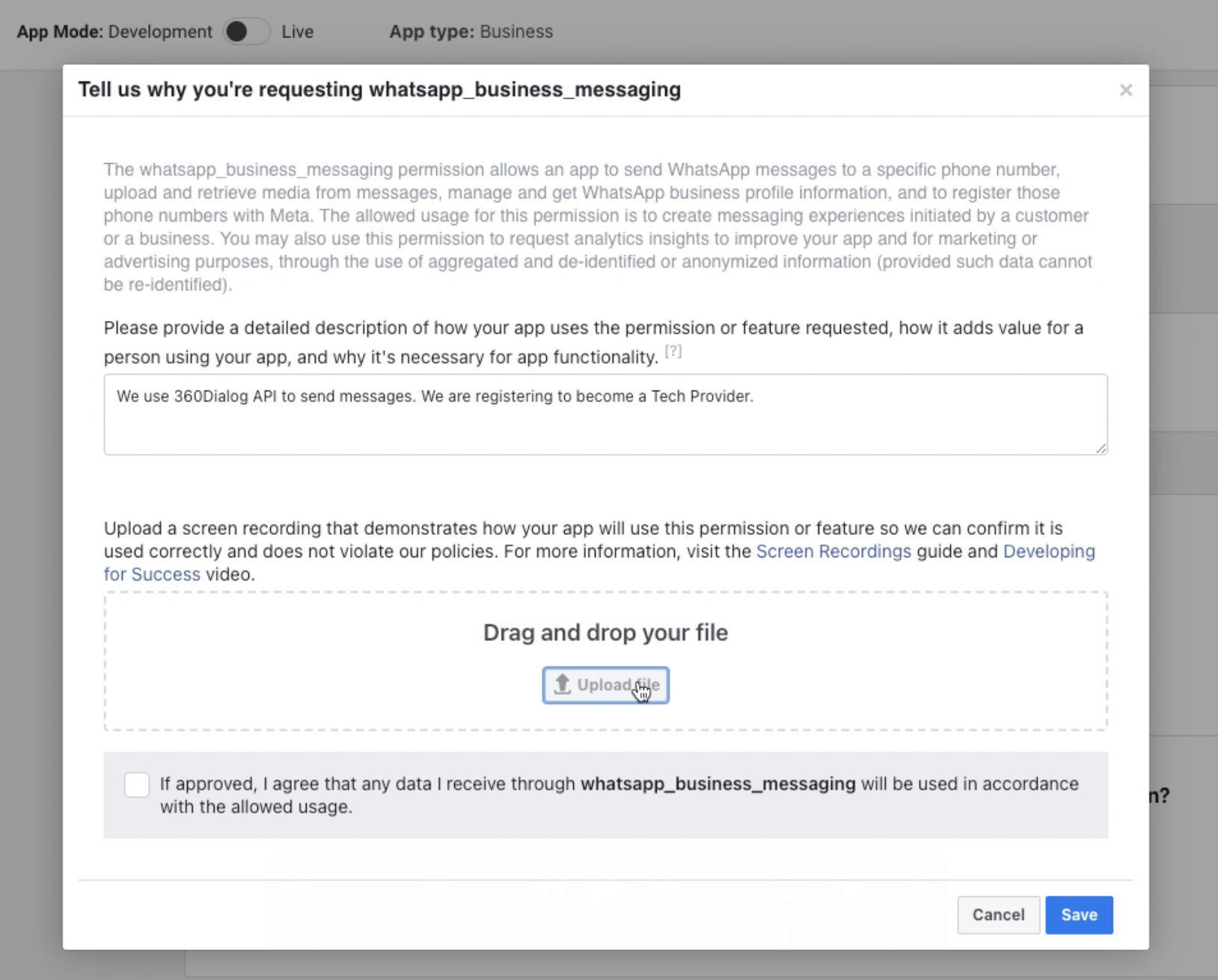
whatsapp_business_messaging

Describe how your app uses this permission to send messages on behalf of your users.

Explain whether messages are sent through 360Dialog API or an application you have developed, and how it benefits your users.

Attach the "Message Sending" video (1) – showcasing your app being used to send a message template, or the API Setup cURL script (Templates API).

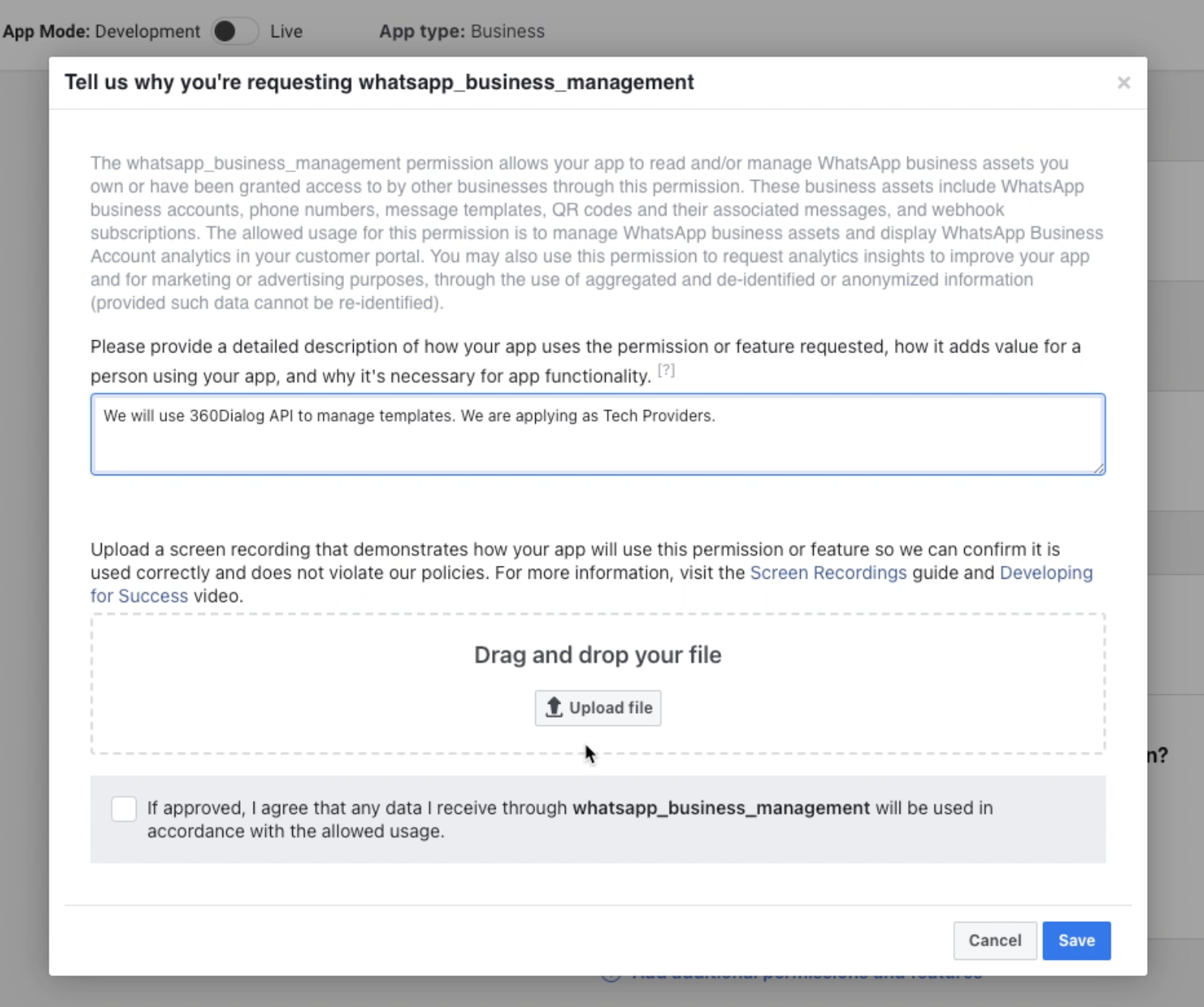
whatsapp_business_management

Includes account details, message templates, and other WhatsApp assets.

Highlight how your platform enables customers to control their account settings and assets.

Attach the "Message Template Creation" video (2) –showcasing your permissions to create templates using the Partner API, or show the WhatsApp Manager being used by you to create a message template.

Submit the videos you recorded highlighting where each respective permissions are used.

Do not submit the same video clip for each permission, even if it covers the use cases for each permission in your submission, or it may be rejected.

You should have a verified page as below:

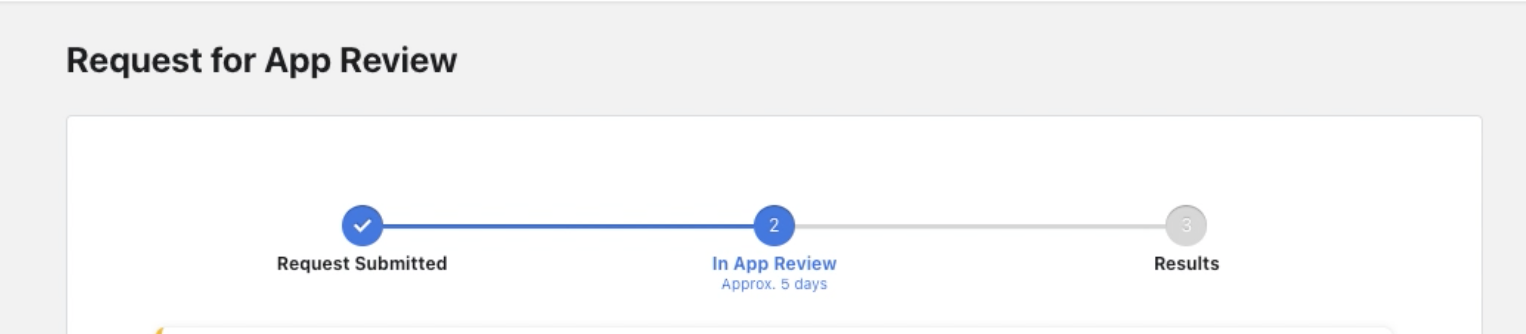
After you click on Submit for Review, your app will be on the "In Review" status.

Access Verification

This step is crucial to ensure your app complies with the requirements set by Meta and WhatsApp.

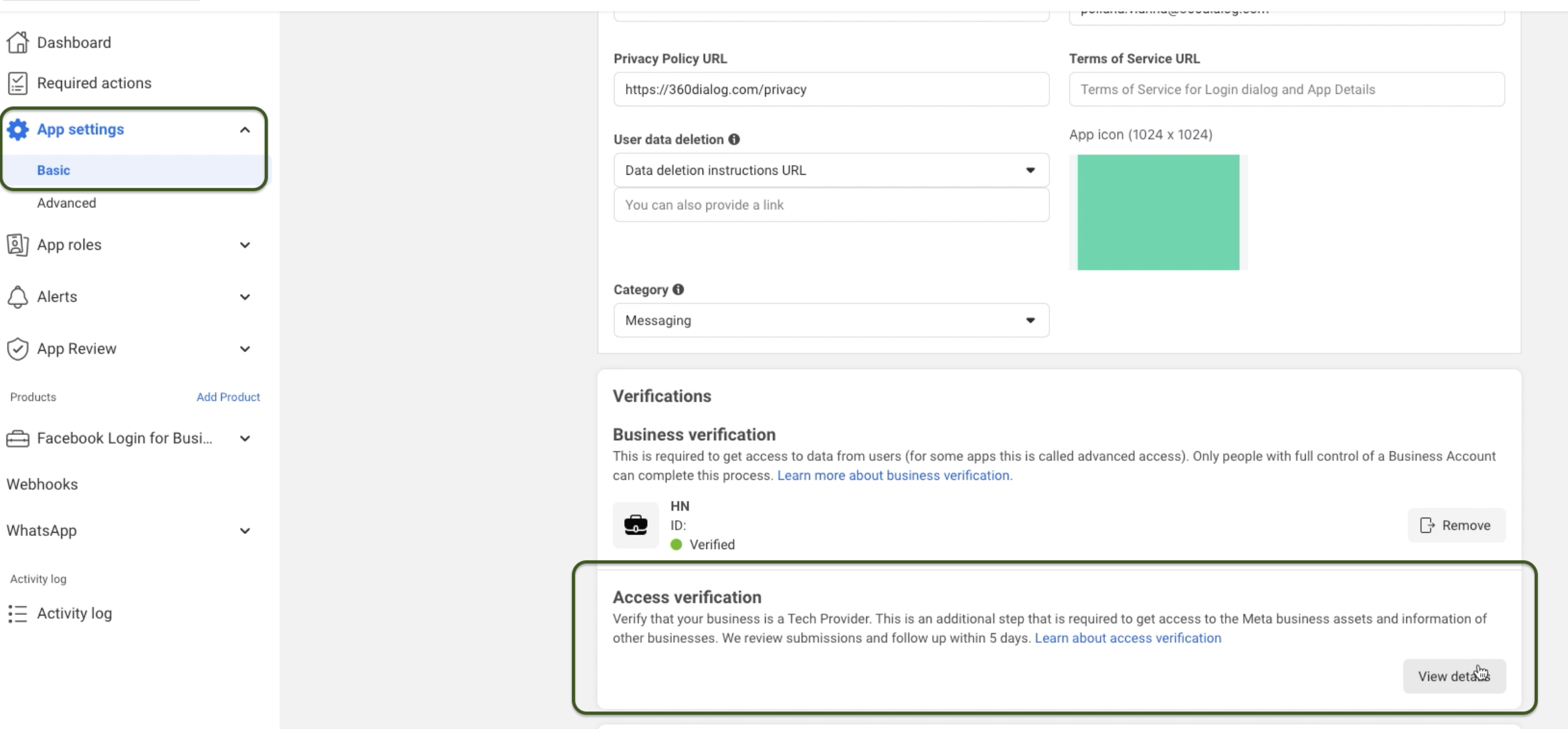
In the Meta App Dashboard, go to App Settings > Basic, then locate the "Access Verification" row, and "Start Verification".

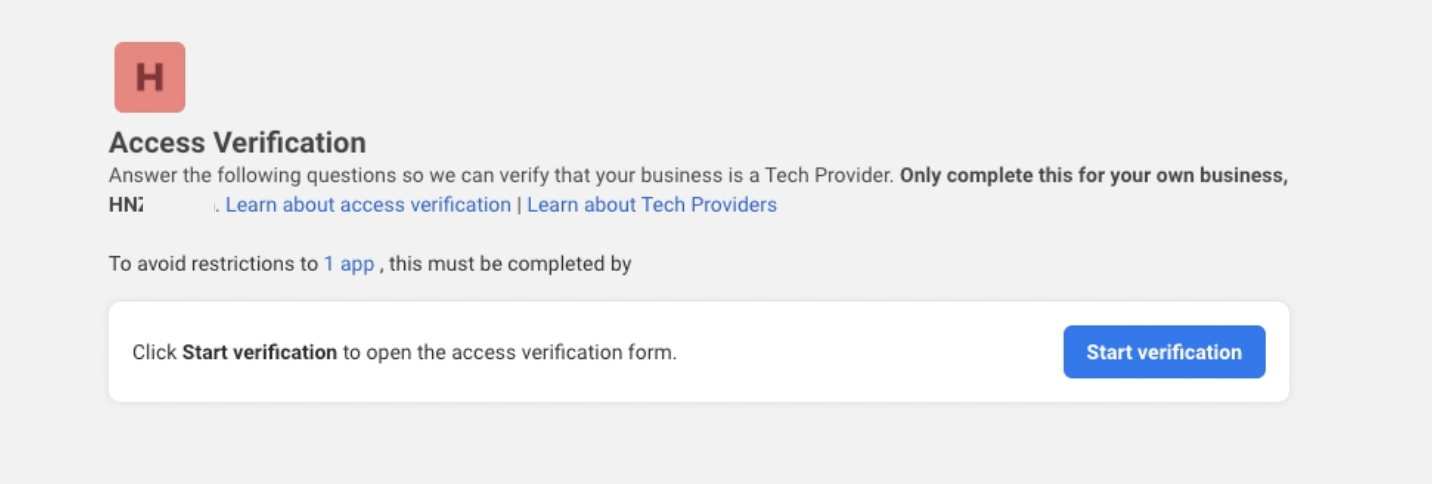
Click on Start Verification to complete the process
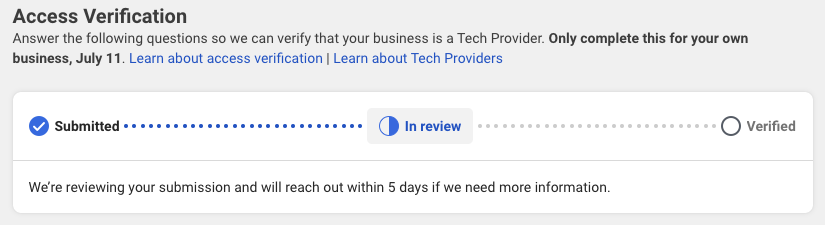
Complete the flow and submit your answers for verification.

You will hear back from Meta via email, developer alert, and its status will be updated in the App Review > Requests panel.

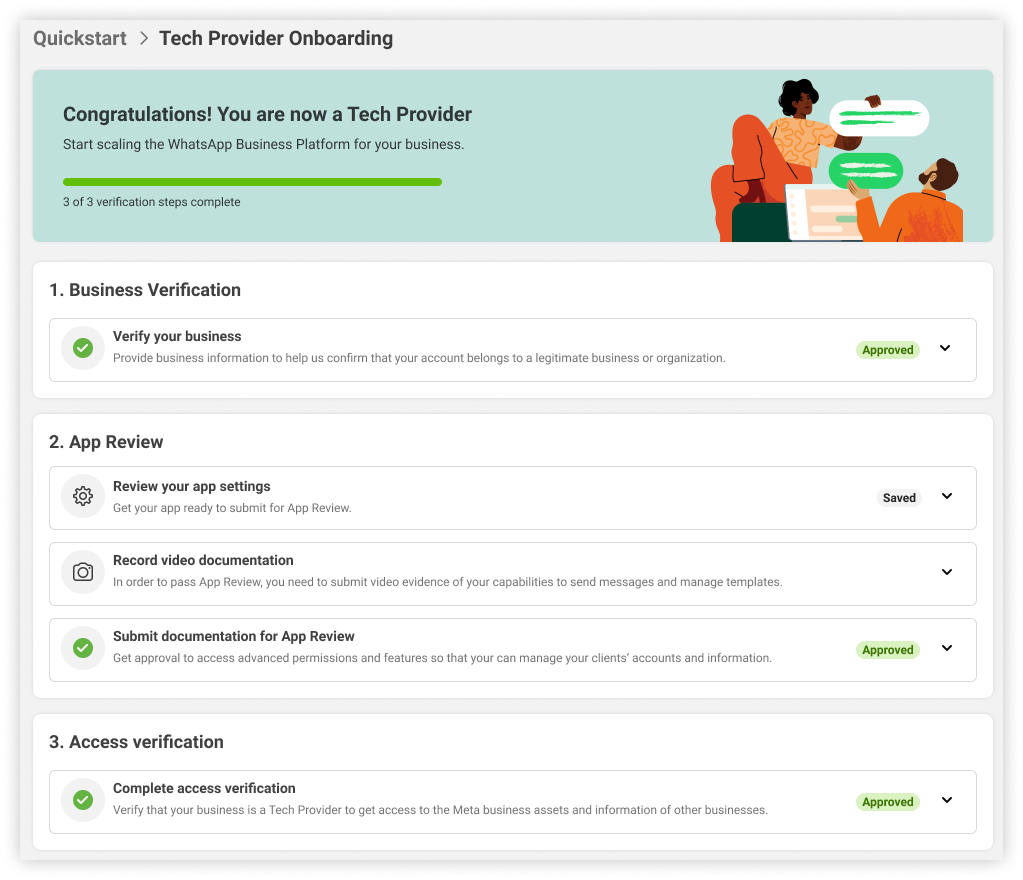
After you have completed the steps above, the Quickstart > Onboarding panel should indicate that all steps are complete (with a green checkmark) like the image below.

7. Set your Application Mode to: Live

Before sharing your Solution ID, make sure to turn on your App Mode toggle to Live.

circle-exclamation

Copy your Tech Provider Solution ID

You can find your Solution ID in the Meta Dashboard under WhatsApp > Partner Solutions. This is the correct ID that you need to copy and share on the 360Dialog Partner Hub.

Please note that this ID is different from the App ID shown in the main bar.

8. Add your Solution_ID to the 360Dialog Partner Hub

After the App is Live, log in to your Partner Hubarrow-up-right and access the “Integration” Tab. Click the edit button on the right side of the Solution ID row to add your ID.

circle-info

If you manage multiple Partner accounts, you are required to add a Solution ID to each Partner account. You can use the same Solution ID for multiple Partner accounts.

Please also make sure that you’ve set your Partner Webhook URL as well as Redirect URL.

Your Solution will only be approved by 360Dialog after you have added the ID in your Partner Hub. Without an approved solution, you will not be able to onboard WhatsApp accounts with your own Embedded Signup, but you can keep onboarding numbers normally through Integrated Onboarding.

circle-info

The Solution ID allows us to share WABAs with you as a Tech Provider. After you add it to your Hub, even WABAs created via Integrated Onboarding will be associated with your Business Manager.

9. 360Dialog accepts the Partner Solution Request

After you input your Solution ID, 360Dialog receives the request to accept the solution request. You should have your solution approved in a maximum of 24 hours.

You must share the Solution_ID in the step before, then 360Dialog can complete the integration.

10. Managing and Messaging

That's it! After the Solution ID is shared and approved, as a Tech Provider, you will be able to use the direct Meta APIs for managing shared WABAs and phone numbers. You will also receive the webhooks of received messages of these numbers.

References

You can also refer to Meta's Official Documentation below:

Become a Tech Provider

Last updated

Was this helpful?