> For the complete documentation index, see [llms.txt](https://docs.360dialog.com/docs/llms.txt). Markdown versions of documentation pages are available by appending `.md` to page URLs; this page is available as [Markdown](https://docs.360dialog.com/docs/hub/funds.md).
# Funds
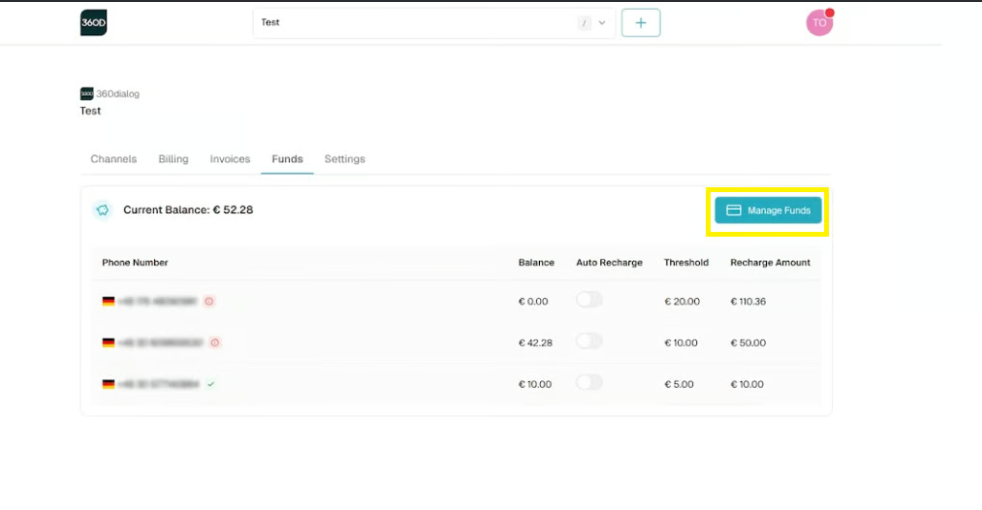
The Funds section in the 360Dialog Hub provides a centralised view to monitor and manage credit balances for each WhatsApp channel. Charges are deducted directly from the channel balance when template messages are sent or calls are initiated.
To ensure uninterrupted message delivery on the WhatsApp Business Platform, each registered phone number must maintain a positive credit balance.
If a channel balance reaches zero, outbound messaging and calls are paused until additional funds are added.
| | System Behavior |
| ----------------------------------------------------- | ------------------------------------------------------------------------------ |
| Positive Balance | Messaging continues normally with costs deducted in real time |
| Zero Balance | Outbound activity stops until balance is topped up |
| Negative Balance | The system may trigger an automatic top-up to replenish the balance above zero |
### Auto-Renewal
Auto-Renewal is a continuous monitoring feature designed to prevent service interruptions by automatically adding funds before the balance is depleted.
When enabled:
* The system continuously monitors the channel credit balance
* When the defined threshold is reached, a top-up is automatically triggered
* The top-up amount is charged to the default payment method
This feature reduces the need for manual balance management and helps ensure uninterrupted messaging and calling services.
### Configure Auto-Renewal
{% stepper %}
{% step %}
Navigate to Funds in the 360Dialog Hub and toggle Auto-Renewal.
{% hint style="info" %}
If Auto-Renewal is off, top-ups must be managed manually. Funds should be added when the balance runs low to continue engaging in paid conversations and calls.
We recommend enabling Auto-Renewal to avoid running out of funds.
{% endhint %}
{% endstep %}
{% step %}
Once it is on, please configure the Threshold and Amount, then save.
{% endstep %}
{% endstepper %}
The Auto Renewal Threshold is the chosen "low-balance" trigger point that initiates a top-up. Enter the amount of Funds to add to the channel.
{% hint style="info" %}
We recommend careful configuration for each channel, setting the Amount higher than the Threshold to avoid multiple payment triggers
Emergency Top-Ups may apply if the balance drops below Zero even when Auto-Renewal is Turned Off
{% endhint %}
### Add Funds Manually
Top up the balance for each channel at any time:
{% stepper %}
{% step %}
Navigate to Funds in the 360Dialog Hub and click Manage Funds
{% endstep %}
{% step %}
Select the number from the list and continue
{% endstep %}
{% step %}
Choose Add funds
{% endstep %}
{% step %}
Enter the amount of Funds to add to the channel and choose the current payment method or add a new one.
{% endstep %}
{% step %}
Confirm checkout and charge the card.
{% endstep %}
{% endstepper %}
{% hint style="info" %}
Funds will be added to the balance immediately upon successful payment.
{% endhint %}
### Request a Balance Refund
Balance Refunds can be initiated at any time:
{% stepper %}
{% step %}
Navigate to Funds in the 360Dialog Hub
{% endstep %}
{% step %}
Select the number and click continue.
{% endstep %}
{% step %}
Select Refund account funds.
The current balance is displayed.
{% endstep %}
{% step %}
Check the notes and confirm the refund.
{% endstep %}
{% endstepper %}
{% hint style="info" %}
Please allow up to 7 business days for the refund to be processed and returned to the default payment method saved to the 360Dialog Hub.
{% endhint %}
For more details, contact [Support ](/docs/support/get-support.md)
---
# Agent Instructions
This documentation is published with GitBook. GitBook is the documentation platform designed so that both humans and AI agents can read, navigate, and reason over technical content effectively. Learn more at gitbook.com.
## Querying This Documentation
If you need additional information that is not directly available in this page, you can query the documentation by asking a question.
Perform an HTTP GET request on the following URL with the `ask` and `goal` query parameters:
```
GET https://docs.360dialog.com/docs/hub/funds.md?ask=&goal=
```
`ask` is the immediate question: it should be specific, self-contained, and written in natural language.
`goal` is what the user is ultimately trying to achieve, the reason they need the answer. Sharing it helps GitBook give you a better, more relevant answer. A goal is most helpful when it describes the outcome the user wants rather than restating the question. For example, with `ask=how do I create an API token`, a goal like `automate deployments from our CI pipeline` lets GitBook tailor the answer to that use case.
The response will contain a direct answer to the question and relevant excerpts and sources from the documentation.
Use this mechanism when the answer is not explicitly present in the current page, you need clarification or additional context, or you want to retrieve related documentation sections.